CodeXomics User Guide
Table of Contents
- Introduction
- Installation
- Getting Started
- Core Features
- AI Assistant
- External Tools
- Benchmark Testing
- Advanced Features
- Troubleshooting
- FAQ
Introduction
CodeXomics is an AI-native genome browser that combines traditional genomic analysis tools with a multi-agent AI assistant you can talk to — one that drives the browser and runs analyses for you. This guide will help you get the most out of CodeXomics.
What Can CodeXomics Do?
- 🧬 Genome Visualization - Interactive visualization of genomes, genes, and annotations
- 🤖 AI-Powered Analysis - Natural language queries powered by multiple AI agents
- 🔬 Protein Analysis - Structure prediction, network analysis, and pathway visualization
- 📊 Data Management - Project-based organization with support for multiple file formats
- 🔌 Extensible Platform - Plugin system and external tool integration
- 📈 Benchmark Testing - Comprehensive AI performance evaluation
Installation
Pre-built Binaries
Download the latest available build from the GitHub Releases page.
macOS
- Download the Intel or Apple Silicon DMG for the latest release
- Open the DMG file
- Drag CodeXomics to your Applications folder
- Right-click and select "Open" the first time (macOS security)
Windows
- Download the Windows installer or portable executable
- Run the installer and follow the prompts
- Launch from Start Menu or Desktop shortcut
Linux
- Download the AppImage, Debian package, or Snap package
- For AppImage:
chmod +x CodeXomics-*.AppImage && ./CodeXomics-*.AppImage - For Debian:
sudo dpkg -i codexomics_*_amd64.deb
Building from Source
# Clone the repository
git clone https://github.com/Scilence2022/CodeXomics.git
cd CodeXomics

# Install dependencies
npm install

# Run in development mode
npm start

# Build for your platform
npm run build:mac     # macOS
npm run build:win     # Windows
npm run build:linux   # Linux
Getting Started
First Launch
When you first launch CodeXomics, you'll see the main interface with:
- Header Bar - File operations, tools menu, and settings
- Genome Viewer - Central visualization area
- ChatBox - AI assistant interface (right sidebar)
- Gene Details - Information panel (left sidebar)
Quick Start Workflow
1. Configure AI Models (Essential)
Before using AI features, configure your LLM providers:
Add API Keys:
- OpenAI: Get key from https://platform.openai.com/api-keys
- Anthropic: Get key from https://console.anthropic.com/
- Google: Get key from https://ai.google.dev/
- SiliconFlow: Get key from https://siliconflow.cn/
Model Lists Stay Current:
- Each provider tab fetches its live model list once credentials are saved, so newly released models appear without an app update
- Models reported by the provider are grouped at the top of the Default Model dropdown; the models shipped with CodeXomics remain available below it
- The line under the dropdown shows how many models were reported and when the list was last updated
- Lists refresh automatically when you open a provider tab (cached for 6 hours) and immediately after you change an API key or endpoint; Refresh re-fetches on demand
- Providers without a model-list endpoint keep the built-in list and say so — nothing is lost when a refresh fails
Configure Agent Settings:
- Mode — leave multi-agent mode off for a single assistant that plans and calls tools directly, or turn it on to route requests to the specialised agents; enable or disable individual agents here
- Generation — temperature, token limits, and timeouts applied in both modes. The model itself is chosen from the picker beside the ChatBox input box; its Auto entry follows the default in Options → Configure LLM Providers
- Execution — function-call rounds, early completion, tool-repetition limits, and timeouts
- Context — system prompt composition and dynamic tool selection
- Memory and Skills — memory system and installed agent skills
Test Connection:
- Click "Test Connection" for each provider
- Verify successful connection before proceeding
2. Load Your First Genome
Supported Formats:
- FASTA (.fasta, .fa, .fna) - Sequence data
- GenBank (.gb, .gbk) - Annotated sequences
- GFF/GTF (.gff, .gtf) - Feature annotations
- BED (.bed) - Genomic intervals
- VCF (.vcf) - Variant data
- BAM/SAM (.bam, .sam) - Read alignments
Sample Data: CodeXomics includes E. coli genome and pathway data for testing.
3. Start Exploring
Navigate the Genome:
- Use the position slider to pan
- Enter coordinates (e.g., "1000-5000") in the position input
- Click zoom buttons (+/-) to adjust view scale
- Right-click and drag to select regions
Search for Genes:
- Type gene name in search box (e.g., "lacZ")
- Press Enter to jump to gene location
- View detailed information in the tabbed Gene Details sidebar (Left Panel)
Ask the AI:
- Type questions in ChatBox (e.g., "What does the lacZ gene do?")
- AI will use appropriate tools to answer
- View conversation history and AI reasoning process
Core Features
Genome Visualization
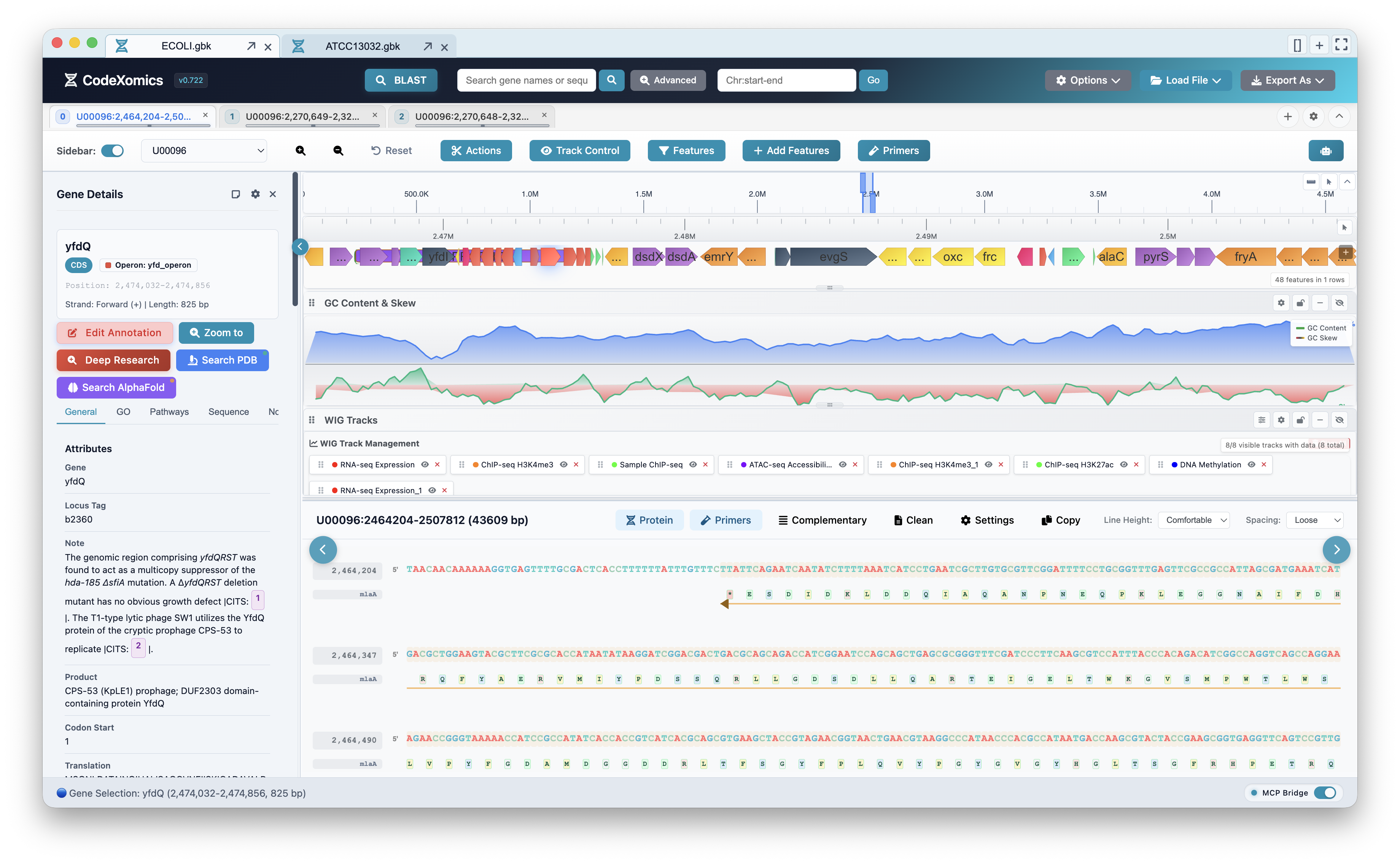
The genome browser combines a feature track, GC content and skew, multi-track WIG data, the gene details sidebar, and a protein/sequence view.
Tracks
Gene Track 🧬
- Shows annotated genes and features
- Color-coded by type (CDS, tRNA, rRNA, etc.)
- Directional arrows indicate strand
- Click to view detailed information
Sequence Track 🔤
- Displays DNA sequence
- Adaptive density based on zoom level
- Color-coded nucleotides (A, T, G, C)
GC Content & Skew Track 📊
- Dynamic SVG visualization
- Adaptive window sizing
- Shows GC percentage and skew values
- Useful for identifying genomic features
Variant Track 🔬
- Shows SNPs and mutations from VCF files
- Quality scores and annotations
- Filter by type and quality
Read Alignment Track 📋
- Visualizes BAM/SAM alignments
- Coverage depth display
- Mismatch highlighting
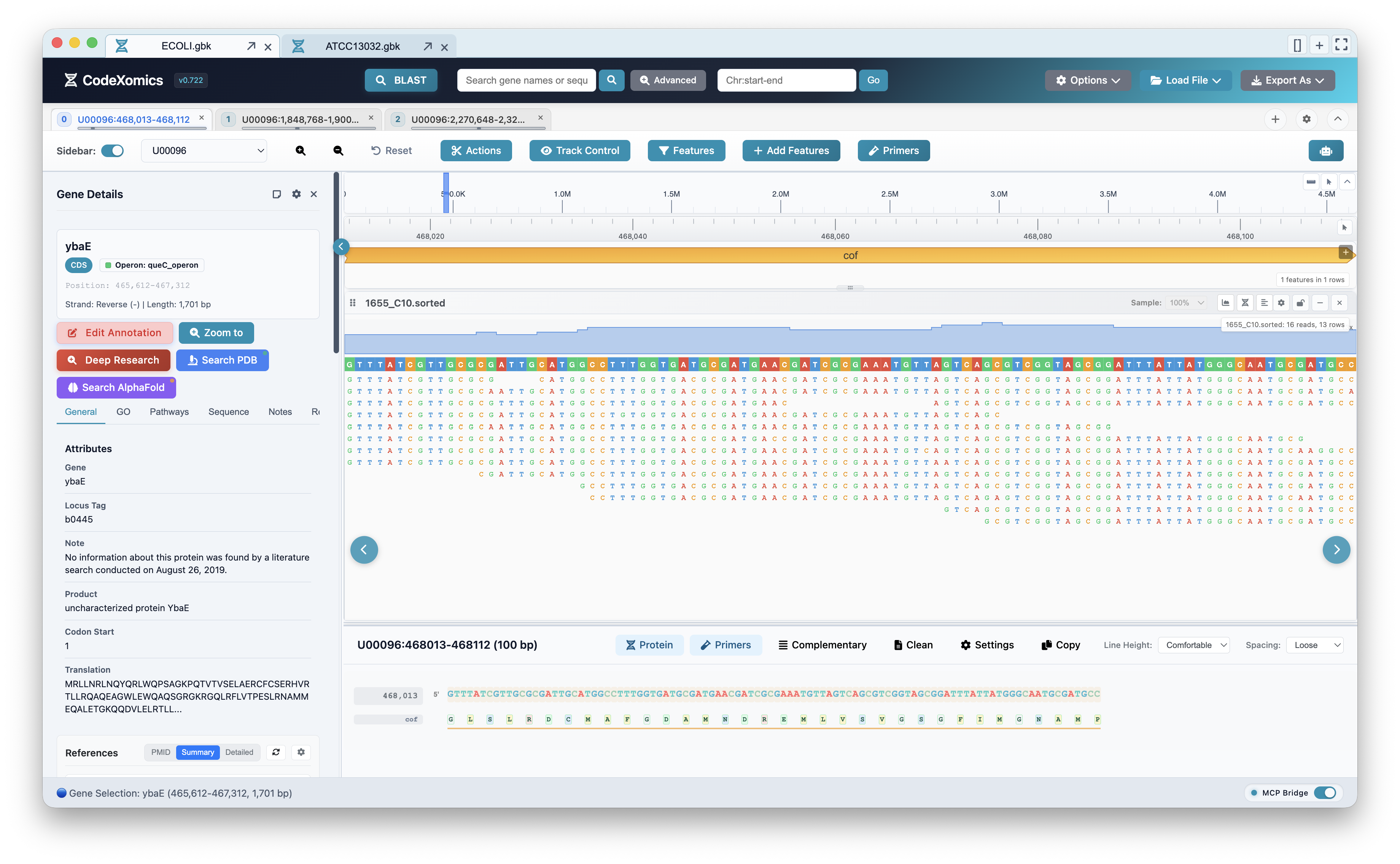
Base-level read pileup over a selected gene, with coverage depth shown above the aligned reads.
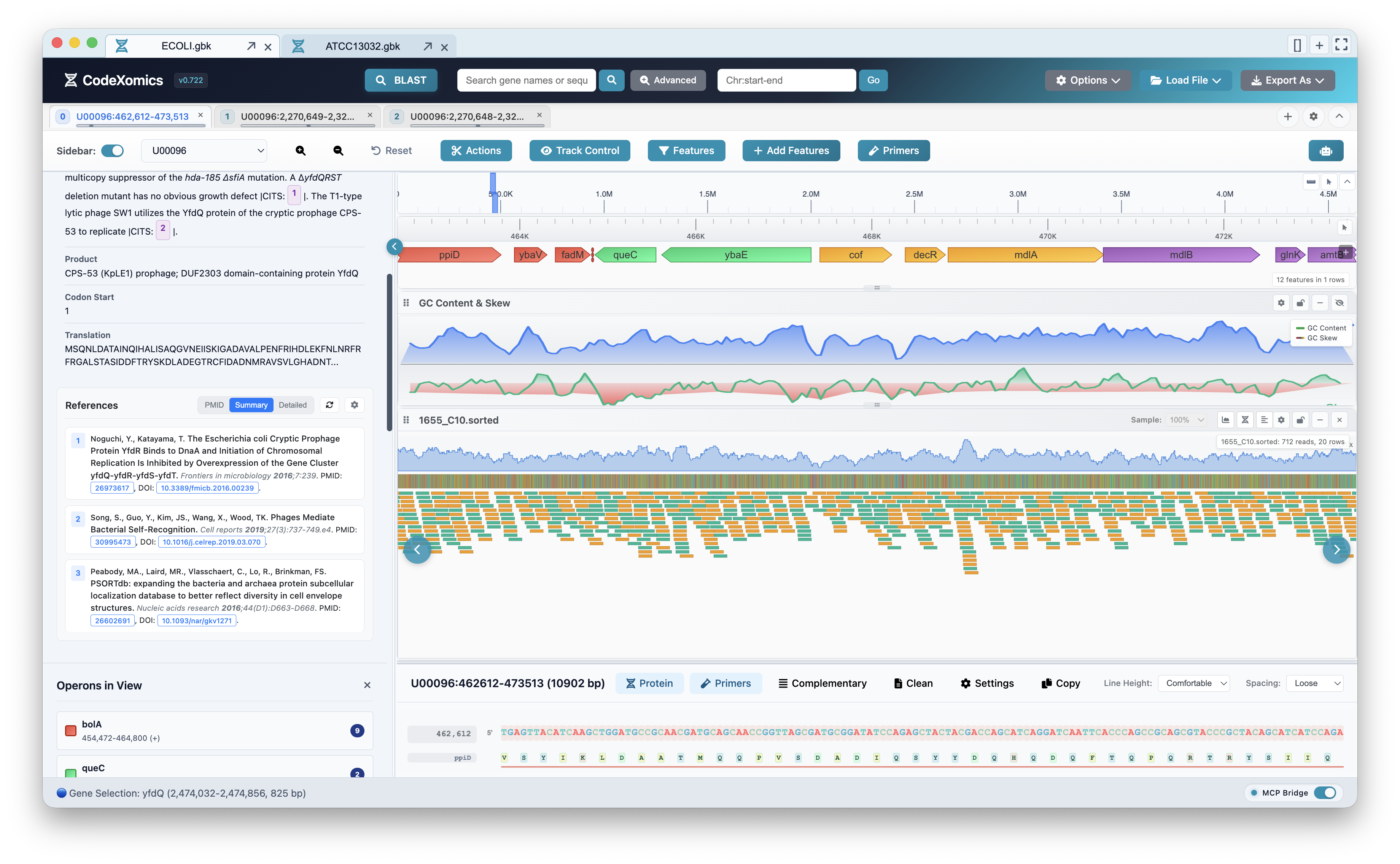
Coverage and base-resolution read tracks alongside gene references and operons in the side panel.
Protein Track ⚗️
- Translated sequences
- Protein features and domains
- Link to structure prediction
Primer Track 🧪
- Designed primers rendered directly on the sequence view
- Forward and reverse orientation indicated by arrow direction
- Click a primer to open its details
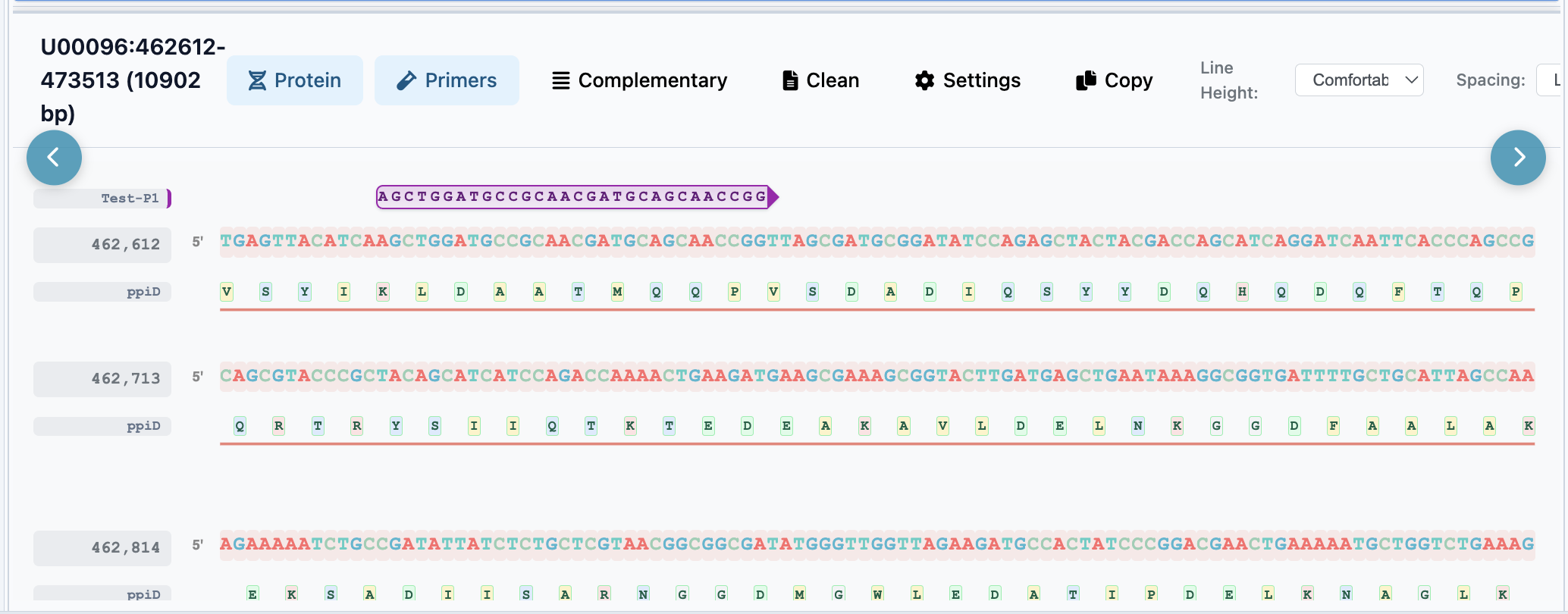
Designed primers (e.g. Test-P1) drawn over the sequence view, aligned to their target coordinates.
Track Controls
Resize Tracks:
- Click and drag track headers to adjust height
- Settings persist across sessions
Reorder Tracks:
- Drag track headers to reorder
- Customize your preferred layout
Toggle Tracks:
- Click eye icon to show/hide tracks
- Right-click for track-specific options
Gene Details Sidebar
The Gene Details sidebar provides a comprehensive, tabbed intelligence panel for exploring annotated genomic features.
Pinned Header
The header remains static, providing immediate access to core identifiers:
- Gene Identifiers: Displays the gene name, locus tag, and feature type (e.g., CDS, mRNA).
- Location Data: Shows exact genomic coordinates, strand orientation, and sequence length.
- Operon Integration: Displays a color-coded operon badge for genes that are part of a coordinated transcriptional unit.
Global Actions
These buttons are always accessible above the tabs:
- Edit Annotation: Modify gene metadata or structure.
- Zoom to: Center the genome viewer on the selected feature.
- Deep Research: Launch advanced AI analysis for functional discovery.
- Search PDB / AlphaFold: Search for 3D protein structures (experimental or AI-predicted).
Tabbed Information Architecture
- General Tab: Essential attributes, product descriptions, and unified literature citations.
- GO Tab: Dedicated Gene Ontology terms for functional classification.
- Pathways Tab: Metabolic context, including EC numbers, KEGG orthology (KO), and pathway maps.
- Sequence Tab: High-quality rendering of DNA, CDS, and Protein sequences with line numbering.
- Notes Tab: A workspace for user-defined qualitative notes.
- Resources Tab: External database cross-references (
db_xref) and project attachments.
Project Management
Creating Projects
Project Structure:
Documents/GenomeExplorer Projects/
└── MyProject/
    ├── data/                    # Project data files
    ├── MyProject.prj.GAI        # Project configuration
    └── metadata.json            # Project metadata
Project Files Include:
- Genome sequences and annotations
- AI conversation history
- Custom annotations and features
- Visualization preferences
- Analysis results
Project View Modes
Grid View - Visual thumbnail layout List View - Compact file listing Details View - Full metadata display
Switch modes using: View → Grid/List/Details
File Operations
Loading Files
Single File:
Multiple Files:
Drag and Drop:
- Drag files directly onto the genome viewer
- Automatically detects file type
- Prompts for additional information if needed
Exporting Data
Export Sequences:
Export Features:
Export Analysis Results:
- AI conversation logs
- Benchmark test results
- Network analysis data
- Pathway visualizations
AI Assistant
ChatBox Interface
The ChatBox is your interface to CodeXomics' multi-agent AI system.
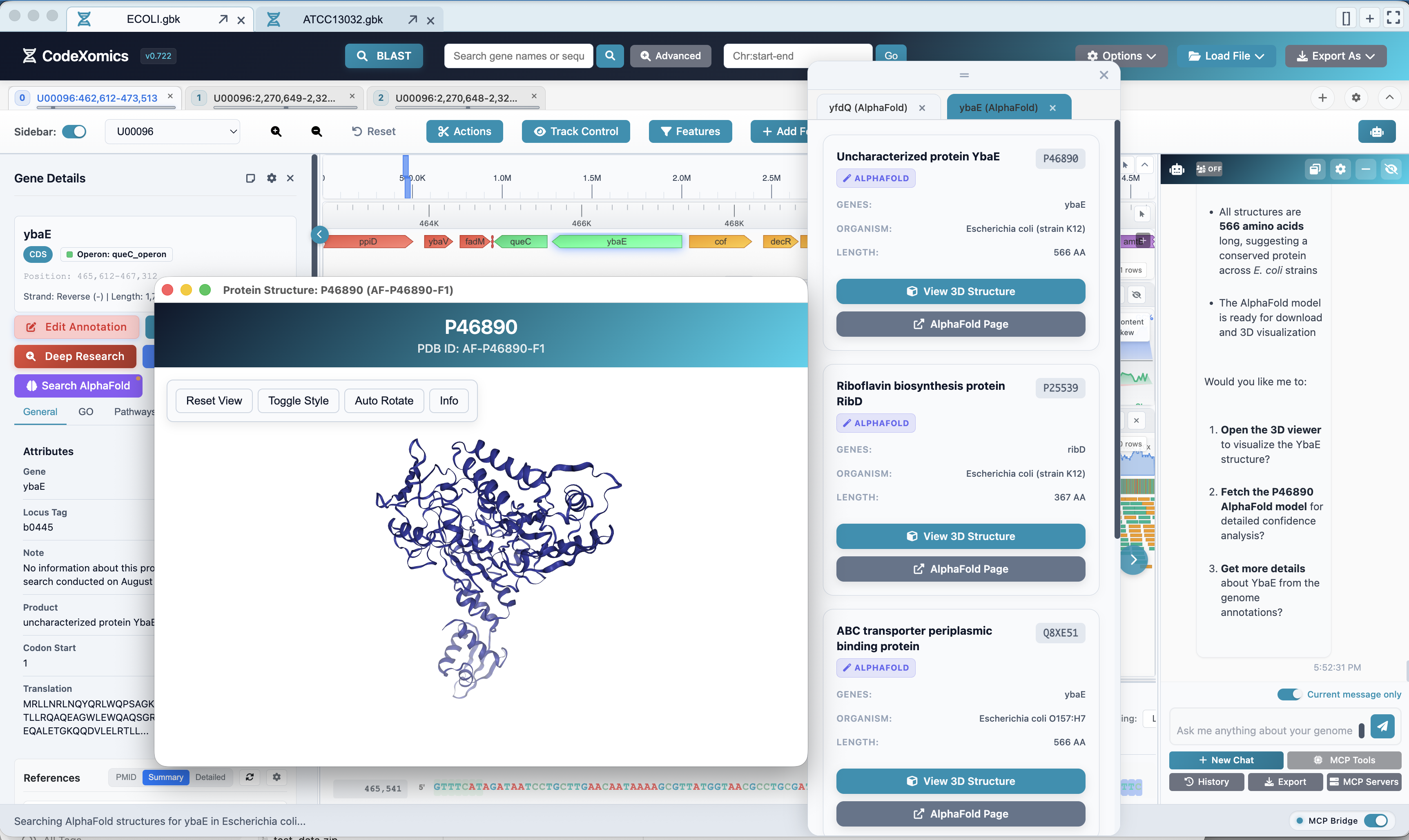
The ChatBox can drive analyses such as AlphaFold structure lookup, opening an interactive 3D protein viewer for the selected gene.
Basic Queries
Gene Information:
"What does the lacZ gene do?"
"Find all DNA polymerase genes"
"Show me genes involved in DNA repair"
Sequence Analysis:
Navigation:
Advanced Multi-Agent Queries
Complex Analysis:
"Perform a comprehensive analysis of the lac operon including:
- Gene annotation
- Protein structure prediction
- Pathway integration
- Regulatory elements"
Comparative Analysis:
Workflow Automation:
"Load E. coli genome, find ribosomal genes, export to FASTA"
"Analyze all genes in region 1000-10000 and generate summary"
Long-Running Research
Some requests — Deep Gene Research above all — start a background task that runs for several minutes rather than answering in one turn. CodeXomics polls those tasks for you; you do not need to ask "is it done yet?", and the assistant is told not to poll them either.
While a run is active, a research progress dock sits between the conversation and the input box and never scrolls away:
- Gene and status —
Queued,Researching,Completed,Failed, orCancelled - Progress bar and percentage — an animated indeterminate bar until the server reports a figure
- Current step — for example Gene search or Literature full text
- Elapsed time — a ticking clock, so a run whose percentage has not moved for a while is still visibly alive
- Actions — jump back to the run's full status message in the conversation, cancel the run, or dismiss the row
Click the dock header to collapse it to a single line; the summary still shows gene, percentage, and current step. Several runs can be tracked at once. Completed runs disappear on their own after a short pause; failed runs stay until you dismiss them, with the reason shown inline.
The conversation also keeps a detailed status message for each run, updated in place, which is where the final report, download links, and outcome are delivered when the run finishes.
Understanding AI Responses
Thinking Process:
- Click "Show Thinking" to see AI reasoning
- Understand tool selection decisions
- View intermediate steps
Tool Calls:
- AI automatically selects appropriate tools
- View which tools were used
- See tool parameters and results
Multi-Agent Coordination:
- Coordinator assigns tasks to specialized agents
- Workers execute specific analysis
- Results are integrated and presented
AI Configuration
Default Model:
- Set in the Default Model tab under Options → Configure LLM Providers
- Used whenever the ChatBox model selector is set to Auto
- The selector beside the ChatBox input box overrides it per conversation
Temperature Settings:
- Lower (0.0-0.3): Precise, factual responses
- Medium (0.4-0.7): Balanced creativity and accuracy
- Higher (0.8-1.0): More creative, exploratory
Context Management:
- AI maintains conversation context
- Reference previous queries
- Build on earlier analysis
External Tools
For NVIDIA arc/evo2-40b sequence generation, see the Evo 2 DNA Generation guide. Open it from Options → Evo 2 DNA Generation.
CodeXomics integrates with several powerful external tools.
ProGenFixer 🔧
Purpose: Protein engineering and sequence optimization
Access:
Use Cases:
- Optimize protein sequences
- Fix problematic sequences
- Predict stability
- Design mutations
Deep Gene Research 🧬
Purpose: Advanced gene analysis and research
Access:
Features:
- Exact CDS target binding through locus/protein identifiers
- Identity-aware literature retrieval and citation filtering
- Separate direct abstract-supported findings from exact GeneID-linked contextual bibliography; contextual papers are never used as annotation claims
- Citation-bound proposal facts with exact PMID/DOI links and verified abstract spans
- Concise, evidence-linked annotation proposals for curator review
- Automatic storage of the completed full JSON report in the associated gene's Resources → Attachments list
- A built-in searchable JSON viewer that expands and pages large reports on demand
- Safe import of externally started DGR tasks through
archive_annotation_research; CodeXomics re-derives and verifies the exact current CDS qualifier snapshot together with the task, citations, proposal, and target binding before allowing a ChangeSet
Research does not edit the genome directly. When direct literature evidence is available, the proposal includes a compact, citation-rich CDS Note that summarizes the report's key functional, pathway, regulatory, structural, and phenotype findings. Each literature sentence is bound to a verified PubMed abstract span. Review the proposed qualifier diff and its citations before approving a ChangeSet. The full report attachment is integrity checked each time it is opened.
While the research runs
A run typically takes several minutes. CodeXomics polls it for you and shows live progress in the ChatBox — see Long-Running Research for the progress dock, its status fields, and how to cancel a run.
When the research finishes
The run's status message in the ChatBox becomes the result summary: confidence, research time, source count, download links for the report and the detailed research data, and the proposed annotation terms.
CodeXomics then creates the annotation ChangeSet for you. You no longer have to ask for the proposal to be turned into a reviewable change — the completion message names the ChangeSet directly:
📋 Annotation ChangeSet: cs_… (awaiting_approval)
- Qualifiers: product, note, go_terms, EC_number, …
- Risk: medium
A ChangeSet is a proposal, not an edit
The ChangeSet is created awaiting_approval and is never applied automatically. Your genome is unchanged until you review the diff and approve it — in the Review panel in the toolbar, or with the request_annotation_approval and apply_annotation_changeset tools. Approval always requires a curator, and the ChangeSet's creator cannot approve their own proposal.
Research that cannot be turned into a safe change says so instead of proposing one. The completion message reports the reason, and nothing is written:
| Message | What it means |
|---|---|
draft_requires_evidence | The research found no evidence-backed claims safe enough to propose |
draft_requires_target | The proposal could not be bound to an exact gene in the loaded genome |
no genome annotations are loaded | Load the genome first, then merge the report with merge_gene_research_report |
not needed | The gene already carries everything the research proposed |
Archive DGR research task … as a gene report first | The run was not target-bound; start it with start_annotation_research for full provenance |
Re-running or re-checking a completed task returns the ChangeSet that already exists rather than adding a duplicate to your review queue.
CHOPCHOP 🔬
Purpose: CRISPR design and analysis
Access:
Capabilities:
- sgRNA design
- Off-target prediction
- Primer design
- Validation
KGML Pathway Viewer 🛤️
Purpose: KEGG pathway visualization
Access:
Features:
- Interactive pathway maps
- Gene highlighting
- Metabolite information
- Pathway export
STRING Networks 🔗
Purpose: Protein-protein interaction analysis
Access:
Analysis:
- Interaction networks
- Functional enrichment
- Cluster analysis
- Network export
Benchmark Testing
Evaluate AI performance with comprehensive benchmark suites.
Opening Benchmark Interface
Test Categories
1. Navigation Tests (4 tests)
- Browser navigation
- Position jumping
- Gene search
- Region selection
2. Analysis Tests (5 tests)
- Sequence analysis
- GC content calculation
- Codon usage
- ORF finding
3. Data Loading Tests (3 tests)
- File loading
- Format parsing
- Data validation
4. Search Tests (4 tests)
- Gene search
- Feature search
- Database queries
- Result validation
5. External Database Tests (3 tests)
- API integration
- Data retrieval
- Link validation
6. Workflow Tests (3 tests)
- Multi-step analysis
- Tool coordination
- Result integration
Running Tests
Automatic Tests:
- Select test suites
- Configure LLM settings
- Click "Run Selected Tests"
- Monitor real-time progress
- Review results
Manual Tests:
- Follow step-by-step instructions
- Complete verification checklist
- Provide scores (0-10)
- Add comments
- Submit evaluation
Viewing Results
Progress Tracking:
- Real-time progress bars
- Test status indicators
- Success/failure counts
Detailed Reports:
- Individual test results
- LLM interaction logs
- Performance metrics
- Error analysis
Export Options:
- CSV export
- JSON export
- HTML reports
- LLM conversation logs
Advanced Features
Conversation Evolution v2
Track AI reasoning and decision-making across conversations.
Features:
- Conversation state tracking
- Decision point analysis
- Tool usage patterns
- Performance metrics
Access:
Plugin System
Extend CodeXomics with community plugins.
Plugin Marketplace:
Available Plugins:
- Biological Networks
- Comparative Genomics
- Metabolic Pathways
- Structural Genomics
- Population Genomics
Installing Plugins:
- Browse marketplace
- Click "Install" on desired plugin
- Plugin automatically integrates
- Access through Tools menu
MCP Integration
Model Context Protocol enables seamless tool integration.
Benefits:
- Standardized tool interfaces
- Cross-platform compatibility
- Enhanced AI tool selection
- Better error handling
Custom Annotations
Create your own genomic features.
Adding Features:
- Select sequence region
- Right-click → "Create Feature"
- Enter feature details
- Save to project
Feature Types:
- CDS (Coding Sequence)
- Gene
- Regulatory Element
- Repeat Region
- Custom Type
Troubleshooting
Common Issues
AI Not Responding
Symptoms: ChatBox doesn't respond to queries
Solutions:
- Check API key configuration (Options → Configure LLM Providers)
- Verify internet connection
- Test connection using "Test Connection" button
- Check API quota/billing
- Try a different model provider
File Won't Load
Symptoms: Error loading genome file
Solutions:
- Verify file format is supported
- Check file isn't corrupted (open in text editor)
- Ensure file permissions allow reading
- Try smaller file first
- Check console for specific errors (View → Developer Tools)
Slow Performance
Symptoms: Interface feels sluggish
Solutions:
- Reduce number of visible tracks
- Close unused external tool windows
- Clear conversation history
- Restart application
- Check system resources (RAM, CPU)
Benchmark Tests Failing
Symptoms: Tests don't complete or fail unexpectedly
Solutions:
- Verify test data files are accessible
- Check LLM configuration
- Ensure working directory is correct
- Review test logs for specific errors
- Try individual tests instead of full suite
Getting Help
Check Documentation:
- This user guide
- Developer guide
- API reference
- Fix summaries in docs/
Report Issues:
- GitHub Issues: https://github.com/Scilence2022/CodeXomics/issues
- Include: Version, OS, steps to reproduce, error messages
Contact:
- Email: songlf@tib.cas.cn
- GitHub Discussions: https://github.com/Scilence2022/CodeXomics/discussions
FAQ
General Questions
Q: What file formats are supported?
A: FASTA, GenBank, GFF/GTF, BED, VCF, BAM/SAM, KGML, WIG, and .prj.GAI project files.
Q: Do I need an API key to use CodeXomics?
A: AI features require API keys from providers (OpenAI, Anthropic, etc.). Basic visualization and analysis tools work without API keys.
Q: Can I use local LLMs?
A: Yes! Configure a local LLM endpoint (e.g., Ollama) in LLM settings.
Q: Is my data sent to AI providers?
A: Only your queries and relevant context are sent to AI providers. Your genome data stays local unless explicitly requested in a query.
Technical Questions
Q: How much RAM do I need?
A: Minimum 6GB, recommended 12GB for large genomes and multi-agent mode.
Q: Can I run CodeXomics on older computers?
A: It depends on the genome size and features used. Try reducing active tracks and disabling multi-agent mode.
Q: How do I update CodeXomics?
A: Download the latest version from GitHub Releases and install over the existing version.
Q: Where are my projects saved?
A: By default in Documents/GenomeExplorer Projects/. You can change this in settings.
Feature Questions
Q: Can I compare multiple genomes?
A: Yes, through the Comparative Genomics plugin and multi-file loading.
Q: How do I export my analysis results?
A: Use Tools → Export or save the entire project (.prj.GAI format).
Q: Can I create my own plugins?
A: Yes! See the Developer Guide for plugin development instructions.
Q: How accurate is the AI analysis?
A: AI provides helpful insights but should be validated. Use benchmark tests to evaluate performance for your specific use cases.
Next Steps
Explore More:
- Developer Guide - Create plugins and contribute
- Developer Guide - Technical documentation
- Release Notes - What's new in each version
Join the Community:
- GitHub Discussions
- Report bugs
- Request features
- Share your analysis workflows
Stay Updated:
- Star the repository
- Watch for releases
- Follow changelog
CodeXomics v0.722 - Intelligent Bioinformatics Analysis with Multi-Agent AI
Made with ❤️ by the CodeXomics Team